

The photos are sample material, not a record of one trip. The video and edited portrait below are real files saved from the web editor. You can try the same samples or start with your own photos. Sample and music credits
Make a photo slideshow with music
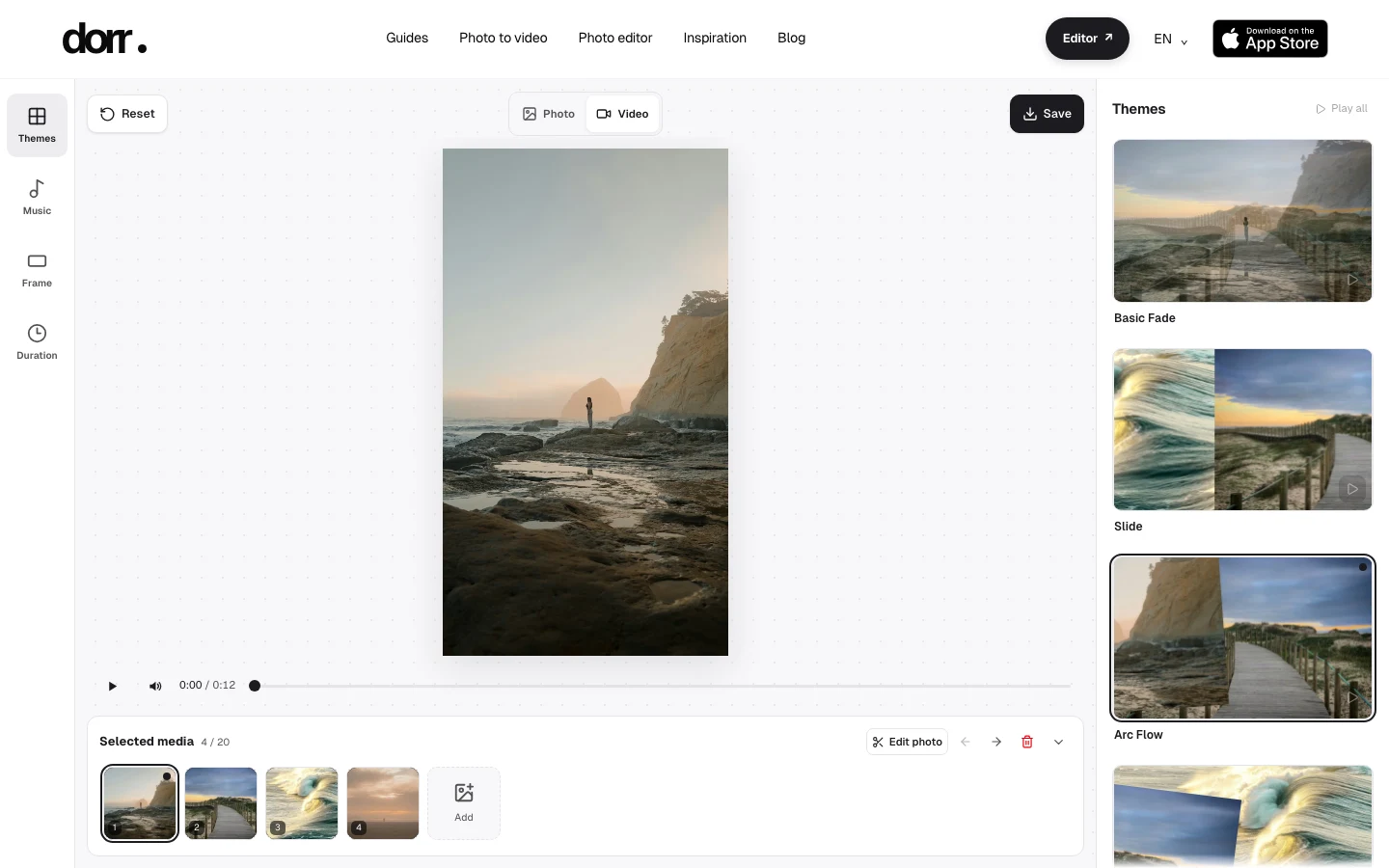
This example combines four coastal photos with Arc Flow, the built-in track Quick Glow and a portrait 9:16 frame. Play the finished video, then follow the settings below to make your own version.
Actual web export · about 12 seconds · 720 × 1280 · Arc Flow · Quick Glow. This video has music.
Start with four photos
Choose “Try the sample”. The four photos open in this order: shore, boardwalk, wave, sunset. Keep that order for this example. With your own photos, add 2–20 images and arrange them before choosing the theme.
Check the theme and frame
The link selects Arc Flow and Portrait 9:16. Check the preview: the theme controls how the photos move and transition. Try Square 1:1 or Landscape 16:9 later if you want a different frame.
Choose music and a 12-second duration
In Music, select Quick Glow; then set Total duration to 12 seconds. Choose these two settings yourself after opening the editor: the link only carries the theme and aspect ratio. You can also choose No music.
Preview, then save the video
Play the preview to check the sequence, framing and sound. Choose Save and keep this tab visible while the video is created. Then save the finished file. The example file lasts 12.122 seconds; browser recording can make the saved duration differ slightly from the selected 12 seconds.
Give a portrait a vintage look
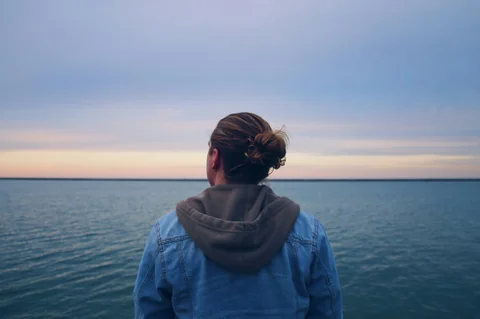
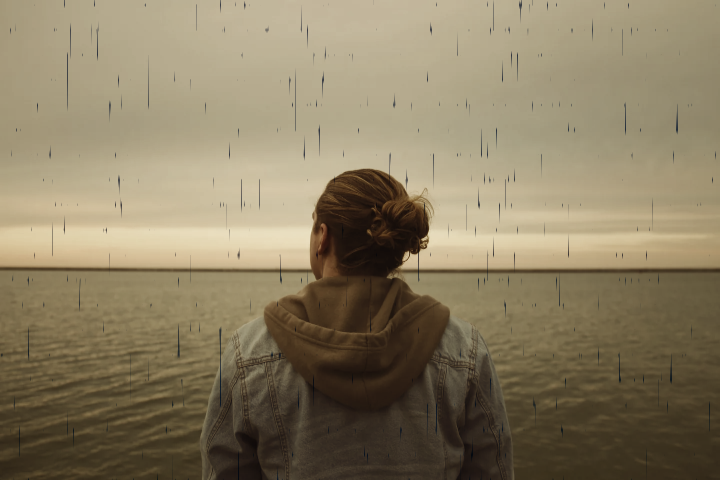
For the second example, apply Analog at 70% to the entire portrait. Compare the original with the actual PNG below. Keeping the same photo and framing makes the effect easier to judge.
Open the photo example
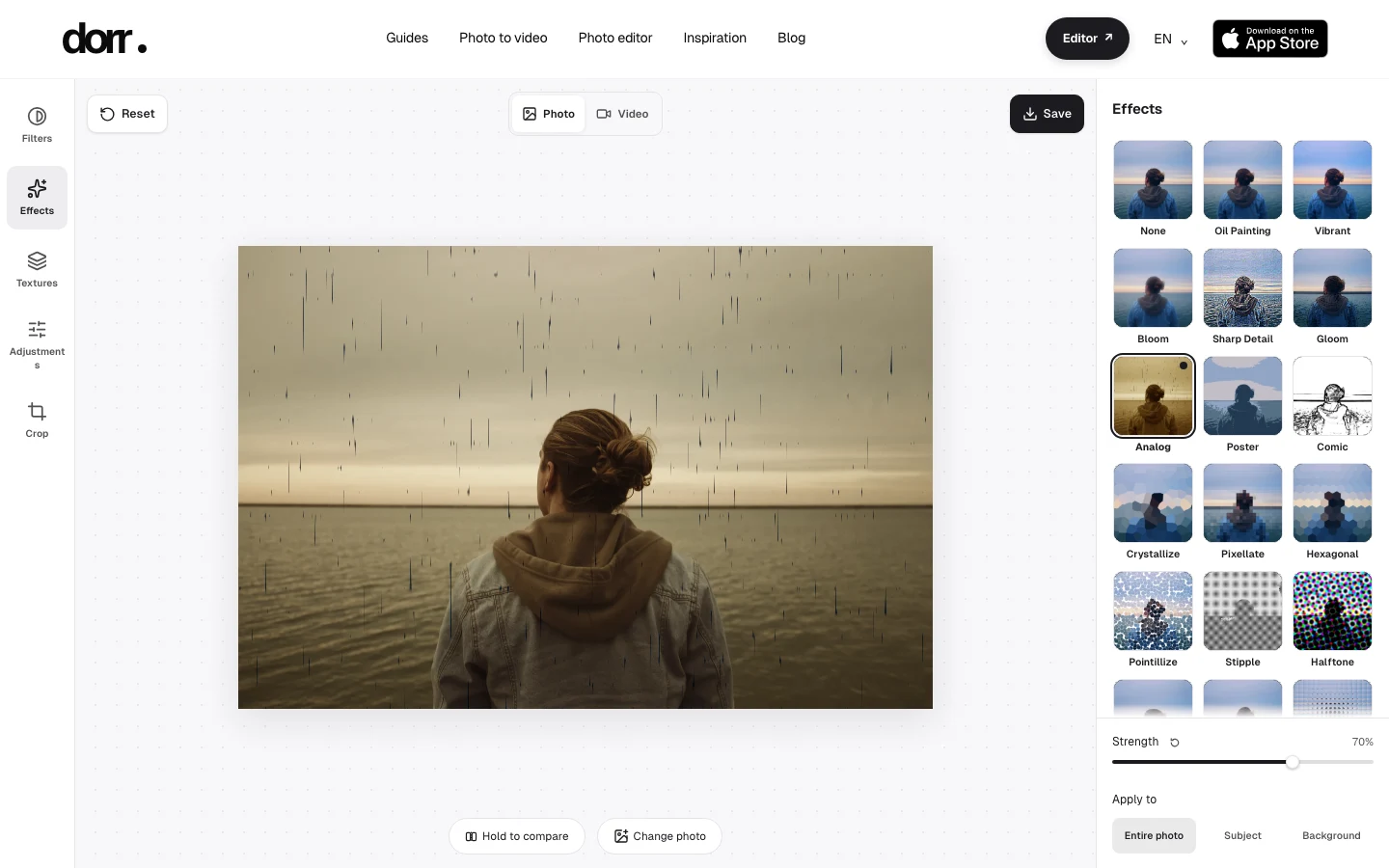
“Try the sample” opens the portrait with Analog, 70% strength and Entire photo already selected. In Effects, check that Analog is selected. For this example, leave filters and textures off.
Compare and adjust the strength
Use the original comparison control to check the face, sky and shadows. Move the strength slider if the effect feels too strong for your photo. The sample uses Entire photo; Subject and Background are separate options and may require a model download for separation.
Save the PNG
Choose Save to create a PNG with a maximum long edge of 720 pixels. This sample produces a 720 × 480 file. Check the result and save it before leaving the editor.
File sizes, formats and browser processing
These are the web editor’s output sizes. A 720-pixel photo limit refers to the longer edge, not always the height.
| Output | Size in pixels | File |
|---|---|---|
| Photo | Long edge up to 720 | PNG |
| Video 9:16 | 720 × 1280 | MP4 / WebM |
| Video 1:1 | 720 × 720 | MP4 / WebM |
| Video 16:9 | 1280 × 720 | MP4 / WebM |
Photos save as PNG. Video saving uses MP4 when the browser supports the required recording format, otherwise WebM. Both are video containers; the available format depends on your browser. Check the saved filename before sharing, because the app receiving it may have its own format requirements.
Your photos and edits are processed in the browser rather than uploaded to a server for editing. The editor still downloads assets and, when needed, a subject-separation model; site analytics may also send events. This does not mean the site makes no network requests or works fully offline.
Questions about the web editor
Is the web editor free? Do I need an account?
The web editor is free to use, including saving at the web output sizes listed above. No account, subscription or app installation is needed.
Are my photos uploaded for editing?
No. Photos you select are processed in your browser. Downloads of samples, music or a separation model and site analytics are separate network activity; local editing is not a promise of zero network traffic.
How many photos can I use, and can I add my own music?
Use 2–20 photos, 26 themes and 20 built-in music tracks, or choose No music. Personal audio files and streaming music imports are not supported. The web editor creates slideshows from still photos; it does not edit existing video clips or animate subjects with AI.
What resolution and file types can I save?
Photos save as PNG with a maximum long edge of 720 pixels. Videos save at 720 × 1280, 720 × 720 or 1280 × 720, as MP4 or WebM depending on browser support. The web editor does not export at 1080p.
Can I switch tabs while a video is saving?
Keep the editor tab visible until saving finishes. Switching tabs, locking the screen or closing the page can interrupt recording. Once the result is ready, save the file before leaving.
Can I continue the web project in the mobile app?
Web projects and their settings do not automatically transfer to the mobile app. Save your web result first. In the app, start a new project with your photos. The mobile app adds text and more editing tools, and Dorr Pro adds 1080p saving and premium features without ads.