

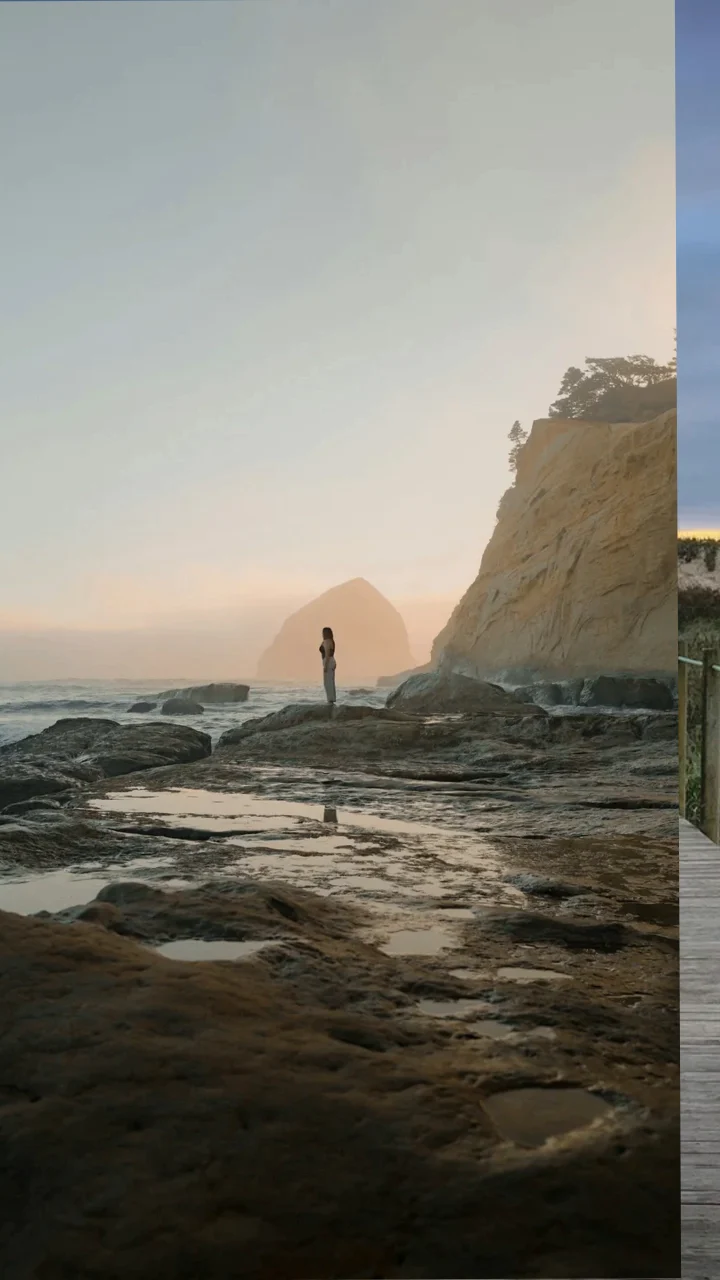
Give each photo a role
Start with a small selection you can watch from beginning to end. Put the scene first, add a change of viewpoint, then finish with an image that feels like an ending. Here is one possible order; your own story can follow a different rhythm.
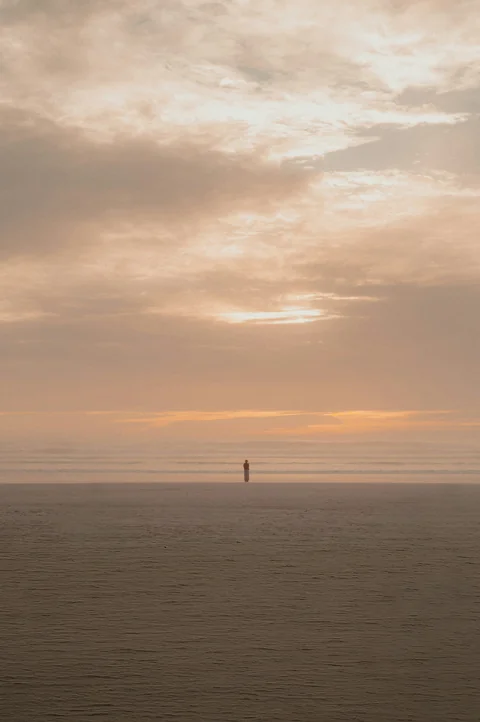
Choose the frame before fine-tuning
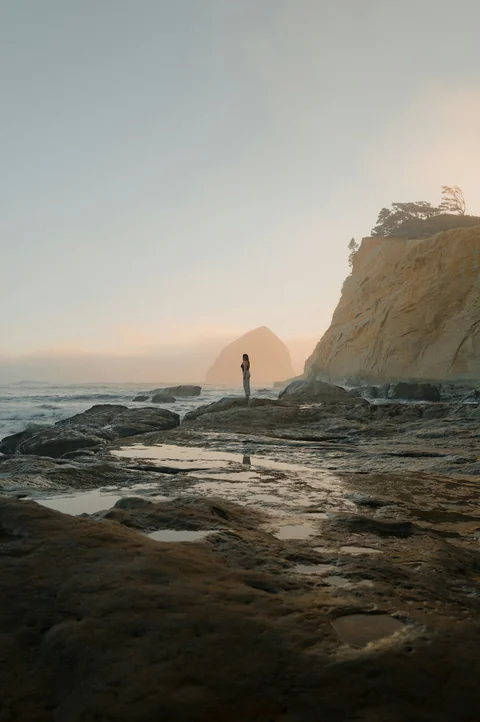
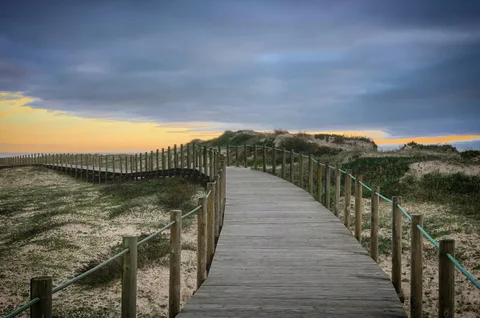
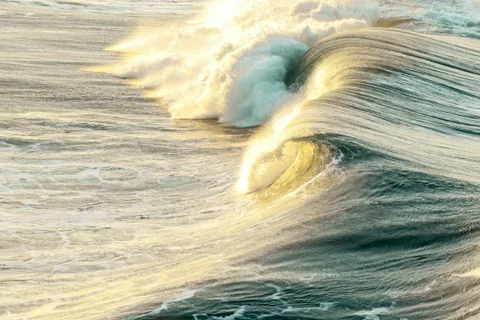
The same photo takes on a different composition in each aspect ratio. Compare the three frames below and check that faces and important details stay in view.
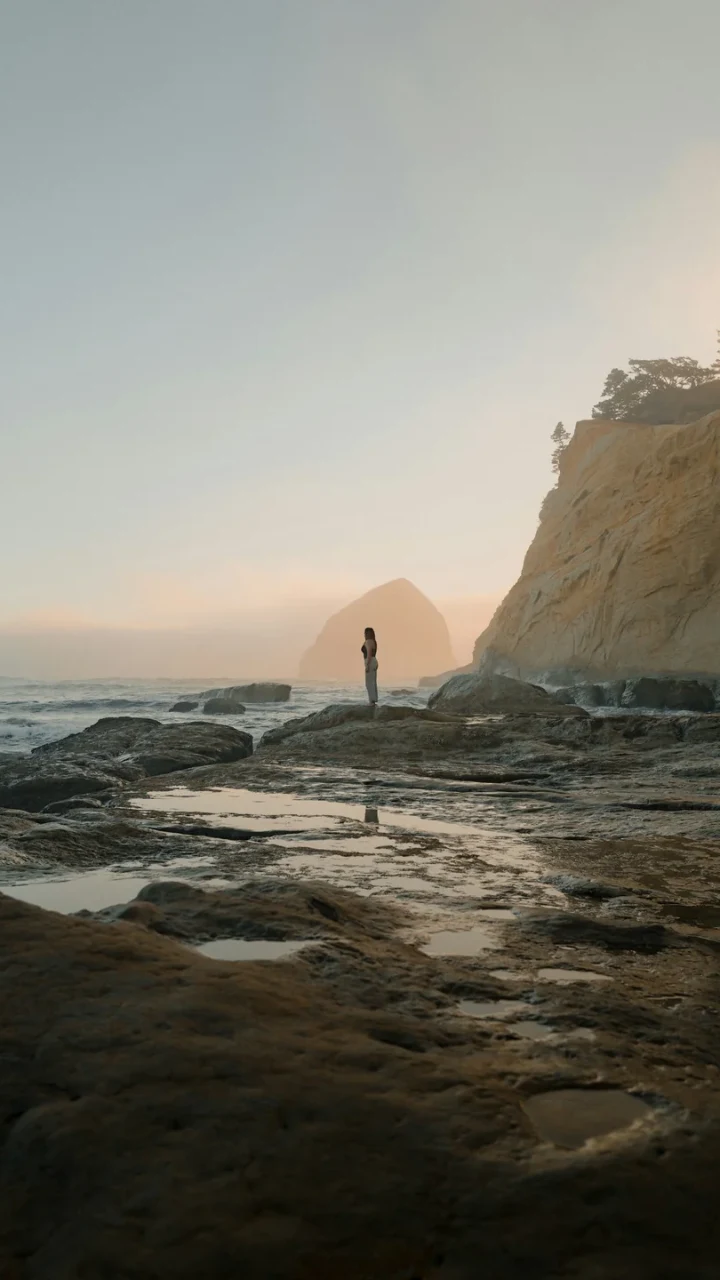
For an upright phone screen.
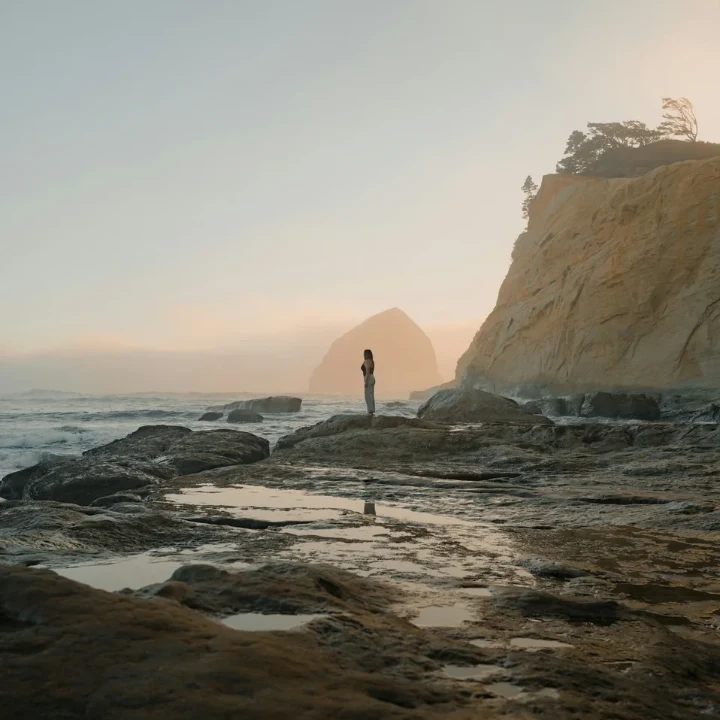
For a compact, balanced frame.
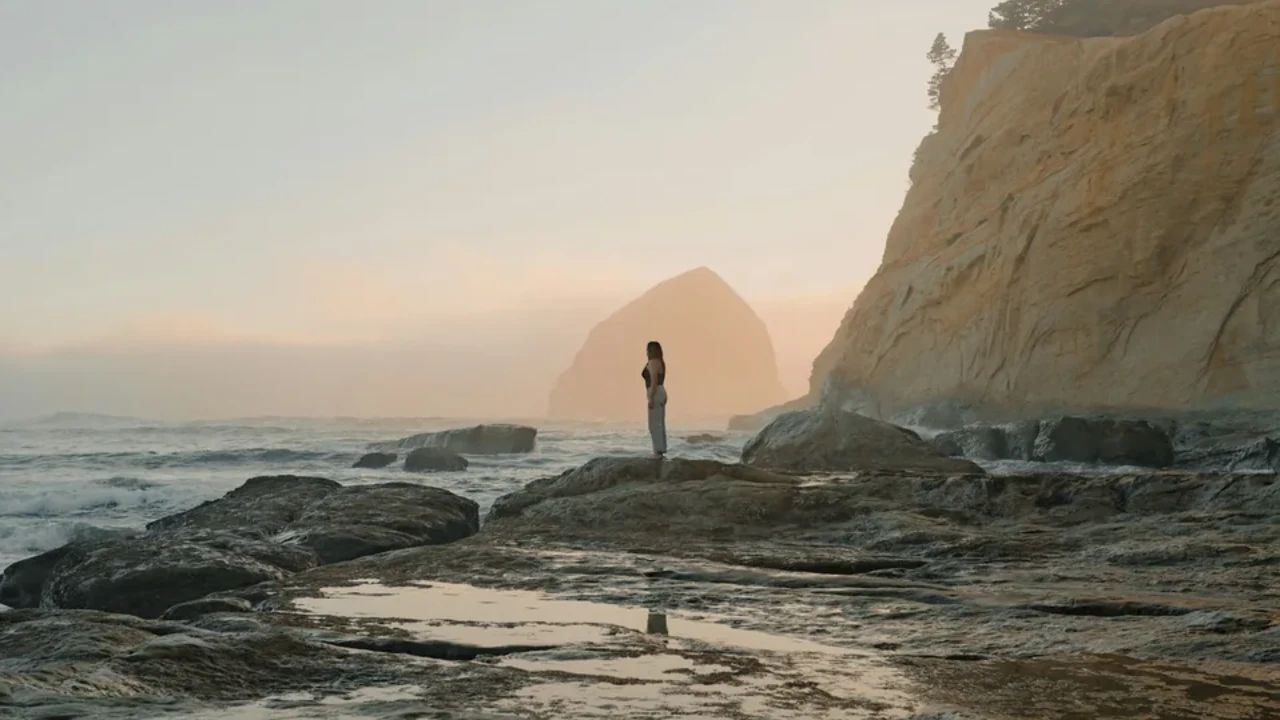
For wide scenes and horizontal screens.
Set up the example in the web editor
Load and order your photos
Try the sample to load these four photos, or start with your own selection of 2–20 still photos. Reorder them in the photo list. You can open each photo to adjust its crop or appearance before returning to the video.
Choose Arc Flow and 9:16
The sample link opens with this theme and aspect ratio selected. In the frame settings, check that the portrait composition keeps the parts of each photo you care about. Compare another ratio before you commit to the final frame.
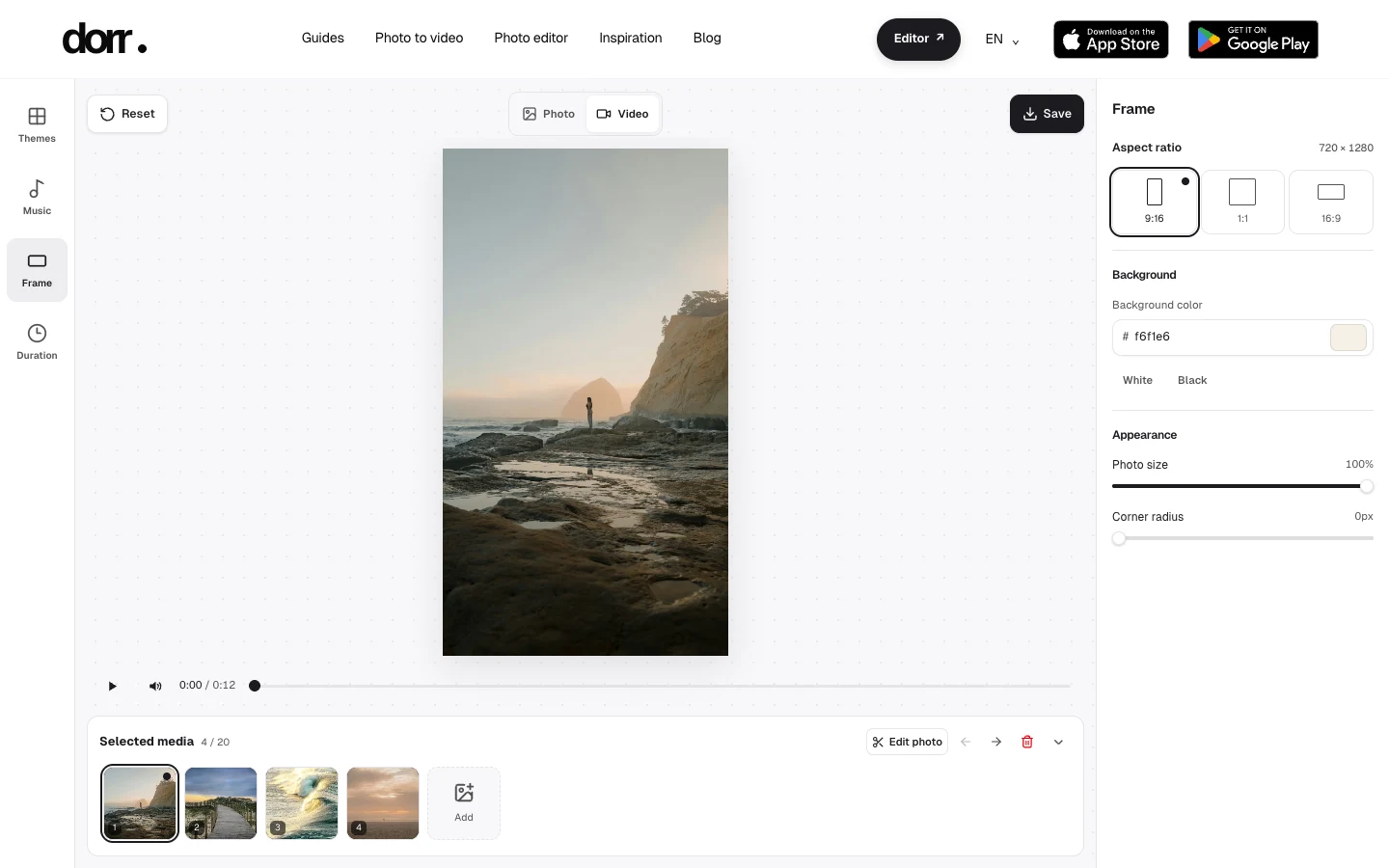
Open full-size editor screenshot Choose music, then set the duration
Select Quick Glow in Music, then choose the recommended length in Duration for the 12s example. The recommendation depends on the photos, theme and music. Watch the preview and adjust the pace to suit your sequence.
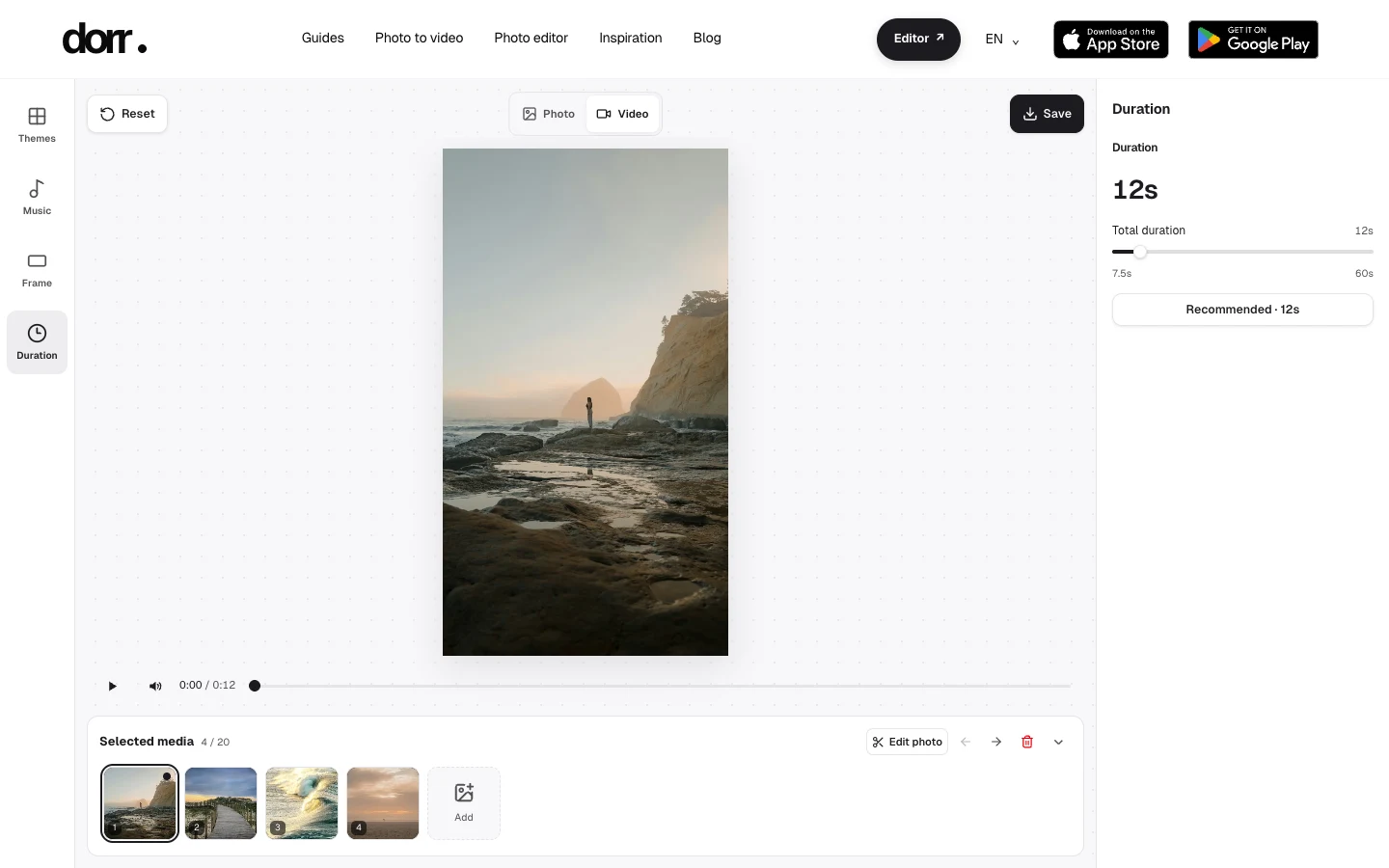
Open full-size editor screenshot
Watch the same photos at two lengths
Only the total duration changes here: 12s uses the recommendation; 23.5s is a longer manual setting. The photos, order, Arc Flow theme, Quick Glow track and 9:16 frame stay the same. Play each example to hear the music and compare the pace.
If important details pass too quickly, try a longer duration. If the sequence feels slow, shorten it or remove a similar photo. Listen to the music as you watch, and find a pace that lets the transitions flow.
Save, then check the finished file
Watch the preview once, then choose Save. Keep the browser tab visible while the video is being created. Play the saved file to check the beginning, ending, framing and sound before sharing it. Photo processing and video creation happen in your browser; no account is needed.
Videos save as MP4 when your browser supports it, or WebM otherwise.
A few practical questions
Do all source photos need to be vertical?
No. You can mix portrait and landscape photos. The theme and output ratio determine their presentation, so inspect the preview and adjust photos whose important details sit near an edge.
Can I use my own music?
The web editor currently offers 20 built-in tracks and a No music option. It does not import your own audio files.
What if I want to create in the phone app?
Dorr is available for iPhone and Android. The web editor is free; the apps offer Dorr Pro options including HD video saving. Start a new project in the app with your photos: a web project does not transfer automatically. Check the store for current subscription details.