

UPDATE VIDEO & APP SCREENS
The Dorr 2.1.0 update in 12 seconds
A silent 12-second announcement card for the Dorr 2.1.0 release on iPhone.
12 SEC · 9:16 · iPhone
The Dorr 2.1.0 update card; the app screens below show the workflow itself.
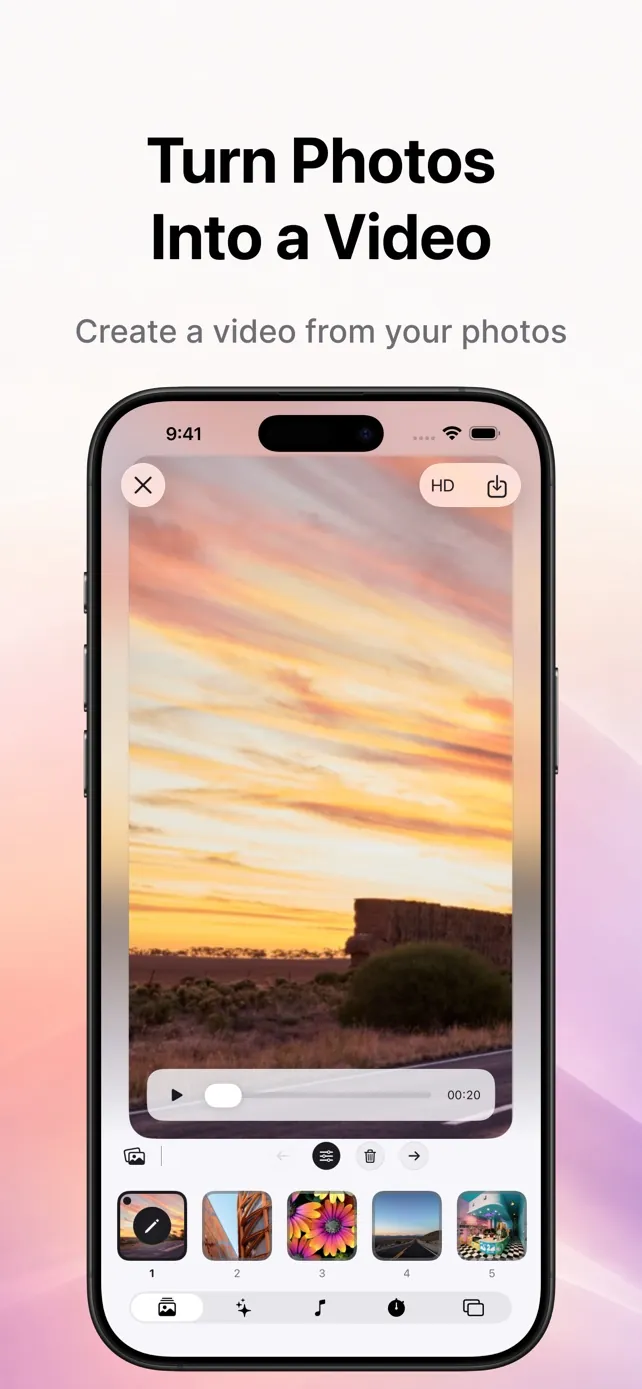
A video starts with the photos, not a blank timeline
Dorr began as a focused photo editor. Version 2.1.0 does not replace that identity with a general-purpose video timeline. It lets people turn an edited set of photos into a short video without starting a separate project.
That decision keeps the workflow centered on the story in the photos. The order of the images, the mood of a theme, the presence or absence of music and the final frame shape are the decisions that matter. Existing video clips are not imported for timeline editing; Dorr creates a new video from selected still photos.
WORKFLOW
From photos to a finished video in six steps
Create your video in six steps, with a preview that stays visible as you work.
Choose 2–20 photos
Start with photos that belong to one memory, trip, event or idea. A deliberate selection gives the video a clearer beginning and end.
Arrange the sequence
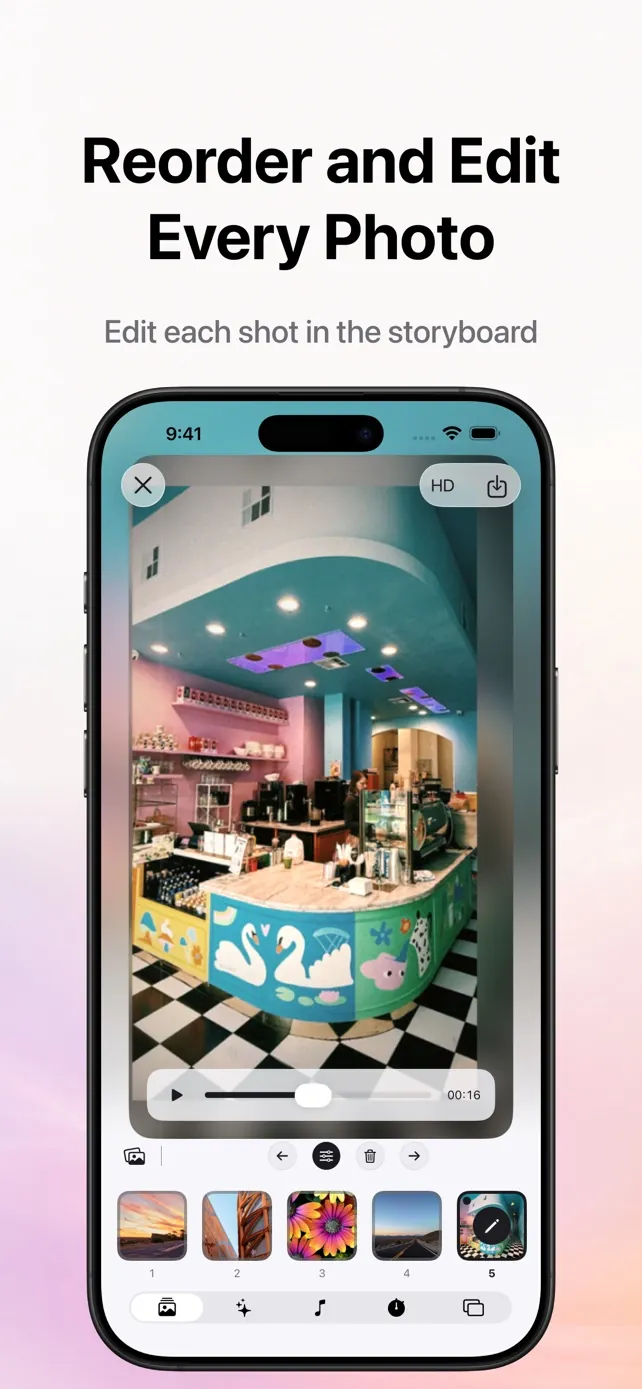
Drag the photos into the order in which they should appear. The storyboard makes the shape of the story visible before saving.
Edit any image
Open an individual photo to crop it, add text, try a filter or effect, and adjust light, color, detail or noise reduction without rebuilding the project.
Preview one of 18 themes
Themes define how the photos move and transition. Preview them with the actual selected images instead of choosing from an abstract style name.
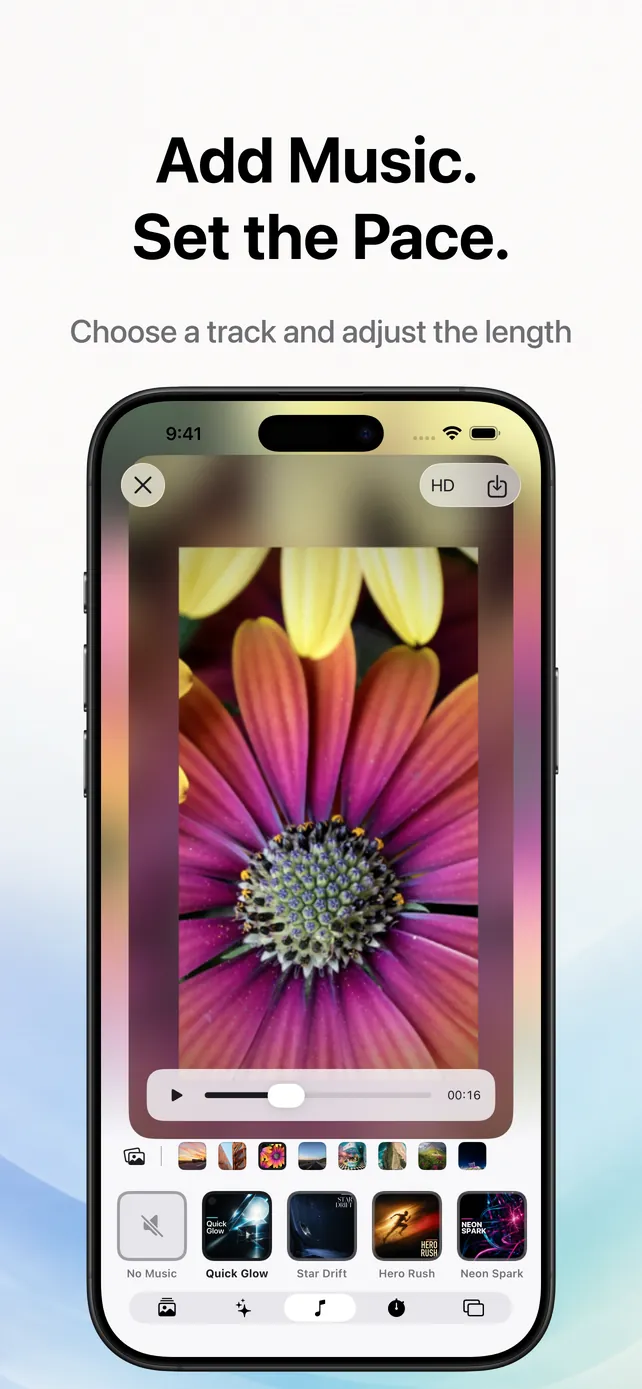
Add music and set the duration
Music is optional. Choose a bundled track when it supports the mood, or keep the video silent, then adjust the total duration to control the pace.
Choose the aspect ratio and save
Finish in portrait, square or landscape. Save in standard quality for free, or use Dorr Pro when the project needs HD.
PER-PHOTO CONTROL
Edit each photo before creating the video
A theme can unify a sequence, but it cannot fix a distracting crop or mismatched exposure. Dorr therefore keeps the photo editor connected to the storyboard. Any selected image can be opened, refined and returned to the sequence before the video is rendered.
In 2.1.0, you can reopen any photo from the storyboard before saving your video. The photo-editing guide below explains cropping, filters, effects, text and adjustments in more detail.
Edit each photo before the videoChoose an aspect ratio for where the video will be viewed
The output shape should follow where the finished video will be seen. Dorr previews all three choices before saving.
Portrait
For a full-screen phone experience and photos composed vertically.
Square
For a compact composition that remains balanced across many feeds.
Landscape
For wide scenes, television screens and conventional video players.
MUSIC & TIMING
Add music and set the duration
Music is optional. Choose a bundled track when it supports the mood, or keep the video silent, then adjust the total duration to control the pace.
Start in standard quality; choose Pro when HD matters
You can create and save videos in standard quality for free. Dorr Pro lets you save in HD, use premium styles, effects and filters, and create videos without ads.
FREE
Dorr
- Create a video from 2–20 photos
- Use the core editing, theme, music and layout flow
- Save in standard quality
- Ads may appear when saving for free
SUBSCRIPTION
Dorr Pro
- Save in HD quality
- Unlock premium styles, effects and filters
- Create and save without ads
Photos and videos are processed on your iPhone
Photo editing and final video rendering happen on your iPhone. The selected photos and finished video are not uploaded to a server for editing.
This applies specifically to media editing and rendering. Dorr may still use network services for advertising, usage analytics and crash diagnostics, so the app is not entirely offline.
Version 2.1.0 also improves performance, memory use and stability across the photo-to-video workflow.
Dorr 2.1.0 questions
How many photos can one video use?
One Dorr photo-to-video project accepts a minimum of 2 and a maximum of 20 photos.
Is music required?
No. Music is optional. You can choose a bundled track and preview it, or make the video without music.
Can I make and save a video for free?
Yes. Creating and saving videos in standard quality is free. Ads may appear when saving for free; HD and an ad-free experience require Dorr Pro.
Does Dorr upload my photos to create the video?
No. Photo editing and video rendering happen on the iPhone, and the media is not uploaded to a server for editing.